Edit Order Rule Properties
To edit the high-level properties of an Order Rule:
-
Select Rules from the top navigation bar, then select Order Rules from the side navigation menu. The Order Rules screen is displayed.
-
Search for and select the desired Order Rule (see Search for an Order Rule for more information on the available search options). The Order Rule Details screen is displayed, with the Base Earn Rules tab selected by default.
-
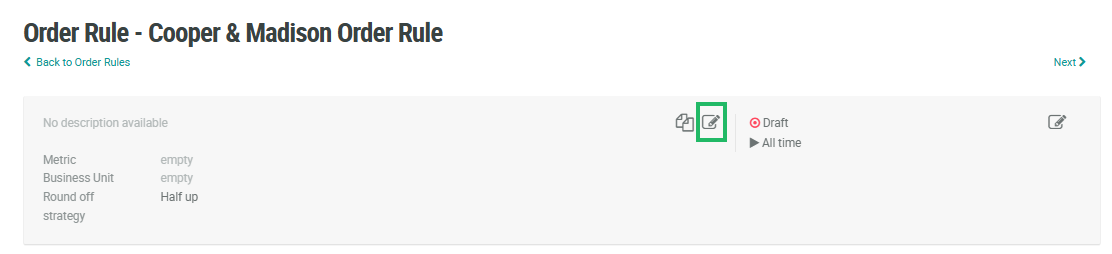
In the header section of the Order Rule Details screen, click the Edit icon. The Edit Order Rule pop-up window is displayed.
-
Enter or select the following Order Rule properties:
-
Display Name: The name of the Order Rule as it appears throughout the platform.
-
Internal Name: A name used internally by the platform to refer to this Order Rule. If you copied this Order Rule from another Order Rule, the recommended best practice is to change the new object’s internal name. Check Edit Internal Name field to make the field editable. A confirmation dialog box is displayed; click OK. Enter a new internal name. The internal name must be unique and can not include any special characters or spaces; only numbers, letters, and underscores are allowed. Do not change the internal name once the Order Rule is published.
-
Description: Optionally enter a description of the Order Rule.
-
Earned Metric: Select the Metric that the Member will earn from making a purchase.
-
Business Unit: Select the Business Unit to which this Order Rule applies. The recommended best practice is to have only one published Order Rule per Business Unit.
-
Round Off Strategy: If a calculation results in a number that is a non-integer, select the rounding strategy to use:
-
No rounding: Don’t round the number . For example:
-
3.67 ==> 3.67
-
-
Drop decimals: Round down to the nearest integer. For example:
-
3.9 ==> 3
-
-3.9 ==> -4
-
-
Half up: If the number is at least half-way to the next integer, round up. Otherwise, round down. For example:
-
4.5 ==> 5
-
4.4 ==> 4
-
-
Round to 0: Truncate decimals. For example:
-
3.9 ==> 3
-
-3.9 ==> -3
-
-
-
-
Click Save.